

How to use pdfl pixelcompare --viewer
A report tells you that page 3 changed by 0.04%. It does not tell you whether
that is a stray hyphen or a wrong price. For that you have to look, and
--viewer is what you look with.
pdfl pixelcompare cf_a.pdf cf_b.pdf --viewer pixelcompare/That writes a folder: three PNGs per page and one index.html. There is no
server, no CDN, nothing to install — open the file. Zip the folder and the
person who has to approve the reprint can open it too, on a machine with
nothing installed on it.
What you are looking at
Section titled “What you are looking at”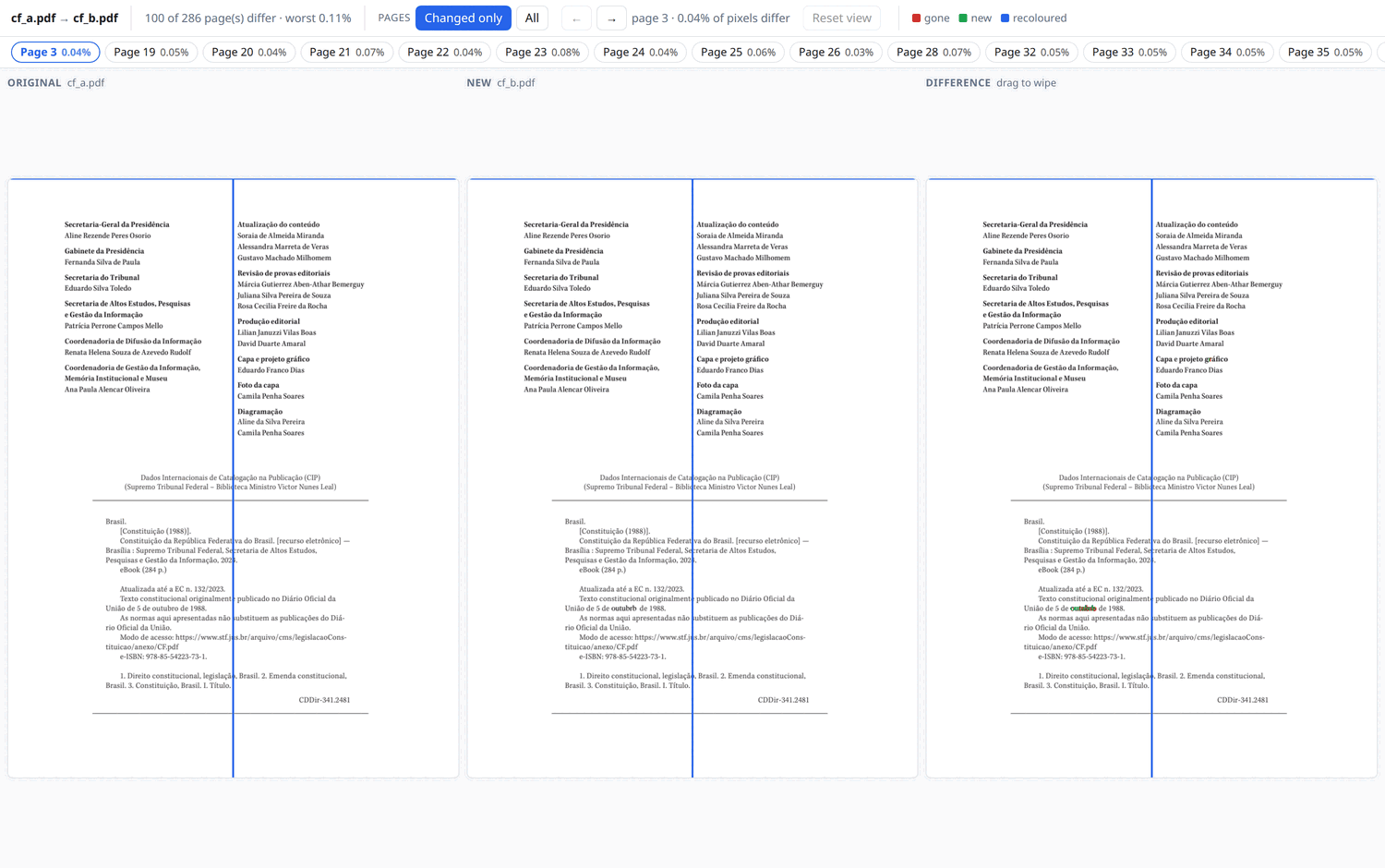
Three panes, always on the same page.
| Pane | What it holds |
|---|---|
| Original | the first file’s page, untouched |
| New | the second file’s page, untouched |
| Difference | both, with what changed painted over them |
The top line is the summary: which files were compared, 100 of 286 page(s) differ · worst 0.11%, and for the page you are on, page 3 · 0.04% of pixels differ.
The wipe bars
Section titled “The wipe bars”A pair of bars — one upright, one flat — crosses all three panes in the same place, and they move in all three at once. They follow the pointer. There is nothing to grab and nothing to aim at: the crossing is wherever the mouse is.
In Difference the bars cut. The new file shows to the right of the upright bar and below the flat one; the original shows everywhere else. Left alone the flat bar sits at the top, which makes the upright one a plain full-height wipe. Drag the flat bar down when what you are chasing runs in a band rather than a column.
In Original and New the same bars are rulers, on the same column and the same line of the page. So whatever the wipe uncovers can be found in either untouched page without measuring by eye.
Both positions are percentages of the page rather than of a pane, so they survive changing page and resizing the window.
The colours
Section titled “The colours”Over any of the panes, the differences are painted in place, and the colour says which kind:
| Colour | Meaning |
|---|---|
| Red | ink that is gone from the new file |
| Green | ink that is new in it |
| Blue | same weight, different colour |
Which is how a one-letter change on page 3 of a 286-page document looks:

outubro became outubrb. Red is the letter that left, green the letter that
arrived. Nothing else on the page moved, and a person scrolling two windows
side by side would have read straight past it.
Moving between pages
Section titled “Moving between pages”The strip along the top is the pages, each with how much of it differs.
It opens on the pages that differ. On this document that is 100 of 286;
All puts the other 186 back. The arrows and ← → follow the filter,
stepping over what the strip is hiding rather than landing on it, and switching
to the filtered view while you are on an unchanged page moves you to the
nearest one that did change.
When nothing differs at all, the button says so and stays disabled rather than filtering the strip down to nothing.
Zoom and pan
Section titled “Zoom and pan”The wheel zooms, up to 8×, and all three panes zoom together around the point under the pointer — so what you were looking at stays where it was. Zooming out stops at the fitted page: the pane is already sized to hold the whole page and there is nothing useful below that.
Holding either mouse button and moving drags the page itself, again in all three at once, at the speed of the pointer whatever the zoom. That is how you reach a corner once magnified. The bars go on following the pointer while you drag, and they keep their weight at any zoom.
Reset view puts zoom, pan and bars back where they started. It is disabled while there is nothing to undo.
Moving to another page starts it from the whole page again. A zoom and a pan belong to the page they were set on; carried over, they would land wherever the next page happens to have something.
Options worth knowing
Section titled “Options worth knowing”The viewer shows what the comparison found, so the flags that change the comparison change what you see.
# Look closer. 150 dpi is the default; 300 sees more and takes longerpdfl pixelcompare a.pdf b.pdf --viewer diff/ --dpi 300
# Ignore pages that changed by less than 0.1% of their areapdfl pixelcompare a.pdf b.pdf --viewer diff/ --max-diff 0.1
# Only part of the documentpdfl pixelcompare a.pdf b.pdf --viewer diff/ --pages 1-10,42
# Absorb rendering noise before comparingpdfl pixelcompare a.pdf b.pdf --viewer diff/ --threshold 0.1 --blur 1
One more is worth understanding. A file exported again from the same source often lands a pixel or two off, and without compensating for that every letter edge counts as a difference. So the comparison looks for a single global shift and reports it when it finds one:
page 3: 2.10% of the pixels differ, in 44 area(s) (aligned by 2, -1 px)Turn that off with --no-align when the position is what you are checking.
Where to look next
Section titled “Where to look next”The CLI chapter has every option, the progress output and the
speed notes. There are also posts here on what a wrong file costs once it is
on the press and on when to reach for compare
instead.
 Thanks to DigitalOcean for hosting this site.